Pages

Showing posts with label sharepoint. Show all posts

Wednesday, February 4, 2015

Office 365 Security Updates - Encryption, DKIM, DLP, and More!

Microsoft recently announced upgrades to OneDrive including greatly expanded storage.  They also released details around how OneDrive (and SharePoint Online) encrypts customer data both in transit and at rest.

The video below explains Microsoft's encryption very clearly.  See the original article for more.


I've been very happy with Microsoft's continued focus on security.  Here's a short list of some of the more recent announcements:

There is also the Office 365 Trust Center - an entire internet portal Microsoft has devoted to answering questions about Office 365's security features.

Tuesday, July 16, 2013

Is it Exchange or SharePoint? What are Site Mailboxes for?


The updated 2013 platform version of Office 365 offers many new features, but SharePoint is perhaps the biggest update.  My last article (Upgrading Office 365 SharePoint Online Sites to Wave 15) had a good list if you're interested.

One of the more interesting and underutilized new features is the Site Mailbox.  You won't see Site Mailboxes by default on new SharePoint sites you set up though.  You'll need to add them yourself.  Let's start with the basics...

What is a Site Mailbox?

The architecture for Exchange 2013 changed somewhat and now includes the ability to support many more types of mailboxes: user mailboxes, shared mailboxes, room calendars (mailboxes), and resource mailboxes (for equipment reservations).  Each has different functions and access methods and most have different storage limits.  The Site Mailbox is an extension of the Shared Mailbox.

When a Site Mailbox is added to a SharePoint site (more on that later) the inbox portion of a Shared Mailbox (more information on Shared Mailboxes) is added to a SharePoint site.  It appears as an Outlook Web App window as seen above.

You can also access the Site Mailbox from within Outlook.  From Outlook you - and anyone who has access to the site mailbox in SharePoint - can drag and drop messages to and from and within the Shared Mailbox just as if it was your own.

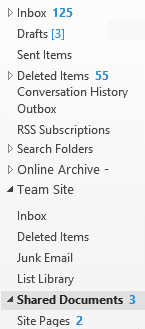
Once your Site Mailbox is set up it will automatically appear in your Outlook 2013 client if you have owner or member access to the site in SharePoint where it was configured.  Your Outlook folder bar should end up looking something like the picture to the right.  Note the "Team Site" item about half way down and the Inbox within it.  The other items from that same SharePoint site are also now listed.

You can do many interesting things with Site Mailboxes from sharing e-mail and files within teams to using them as a migration bridge for the old Exchange Public Folders.  When combined with the other new Exchange mailbox types they give another powerful way to store and share e-mail.  It should be noted that the 5 GB of e-mail storage in each Site Mailbox does not count against any other storage quota, either for SharePoint or Exchange... not personal or pooled quotas.  You have plenty of e-mail storage options in Office 365 (E3 values listed here, see the link at the bottom of the article for more):
  • 25 GB per User Mailbox
  • 5 GB per Shared Mailbox
  • 5 GB per Site Mailbox
  • 250 GB per Resource Mailbox (for room and equipment reservations).
And... only User Mailboxes require a license.  You can apply an Exchange Plan 2 license ($8/mo) to a Shared Mailbox though if you would like to increase its storage to 25 GB.


How to Add a Site Mailbox

The easiest way to add a Site Mailbox to your SharePoint site is from the Get started with your site web part. Click on the Keep email in context tile, and then choose to Add it.

If you don't have the Get started web part on your site you can follow these instructions instead:


Manually Add a Site Mailbox:

1. On the Quick Launch (left nav bar) click the Site Contents item.  You can also get to Site Contents from the gear icon on the right end of the top nav bar.


2. From the Site Contents page click the add an app icon.


3. On the Your Apps page, click Site Mailbox.


What to Do with a Site Mailbox

Use Site Mailboxes to...
  • Replace Public Folders being used for e-mail storage
  • Share e-mails within a team instead of creating a shared mailbox
  • Share e-mails within a team instead of sharing your own mailbox folders
  • cc: the Site Mailbox on e-mails you wish to share with a team instead of cc'ing the team members and gumming up their inboxes
  • cc: the Site Mailbox when sending e-mails with file attachments to share files (I'd rather post them to a SharePoint Document library though...)
  • Archive e-mails centrally so that intellectual property and organizational knowledge are preserved (and shared) despite personnel changes and mailbox deletions
  • Access SharePoint data through the convenient and familiar Outlook desktop client interface
  • Manage the Site Mailbox the way you would a regular mailbox with policies, forwarding, distribution group memberships and more.

What Site Mailboxes Can't Do

There are some limitations to Site Mailboxes as well:
  • They have a 5 GB storage limit
  • You can only have one per SharePoint site - create a SharePoint team site for each group that needs a Site Mailbox
  • You cannot interact with the mailbox contents within the SharePoint interface as objects the way you can with list items and document library objects
  • For full functionality you need Outlook 2013
  • You can only add 10 Site Mailboxes to Outlook at a time
  • There's only two levels of access: all or none.

More Information about Site Mailboxes

Enhanced by Zemanta

Wednesday, June 12, 2013

Upgrading Office 365 SharePoint Online Sites to Wave 15 (2013)


If your Office 365 tenant has just been upgraded you won't see the new SharePoint Online features unless you manually upgrade your existing sites to the new 2013 platform.  New features include:
  • Better mobile experience
  • eDiscovery
  • Improved branding
  • New Business Intelligence and Business Connectivity Services capabilities (limited in SharePoint Online)
  • OneNote
  • PowerShell for SharePoint Online
  • Records Management & Compliance
  • Revamped Office Web Apps
  • Site Mailboxes
  • SkyDrive Pro
  • Social - including Yammer (the options for Yammer should show up by July for all tenants)
  • Totally reworked external file sharing
For a more extensive education about the new features of SharePoint 2013 visit Capabilities and features in SharePoint 2013 on TechNet or specifically for SharePoint Online - What’s new in SharePoint Online–top 10.

* Note: Please keep in mind that you should always test changes in a separate environment where possible before making production system changes like this.  During the process you will be presented with an option to set up a demo site with the new features.  If you have questions about how upgrading the service will affect your content and existing SharePoint environment I recommend you test on the demo site before following these instructions. *

Here are the steps you follow to upgrade your SharePoint sites:

1. Log in to your Office 365 tenant
2. You should see a bell icon in the top navigation bar:

3. Click the bell icon and a drop-down box with additional information will appear:

4. Click on the link to "Start using them" - it will take you to the SharePoint admin console.  Or if you don't have the alert you can just choose the Admin link on the top navigation bar and click the SharePoint option:

5. On the SharePoint Site Collections page find a collection that lists 2010 in the version column:
6. Check the box next to the 2010 site collection you wish to upgrade:

7. Click the Upgrade button and select the option for "Site collection upgrade settings":


8. Click the "Link to upgrade page" and your upgrade page will open in a new window:


9. Click the "Upgrade this Site Collection" button to begin your upgrade.  If you want a demo upgrade to test your applications follow the link provided:


10. Click the "I'm ready" button in the confirmation window.  Note that you cannot go back once you have upgraded.

  
11.  Depending on how busy the Office 365 SharePoint automated upgrade service is you may see a notification that you are "Waiting to Upgrade."  The screen will update periodically and when its your turn to upgrade (generally just a few minutes later) you will be forwarded to the upgrade screen.


12. While your upgrade is in progress you'll see some statistics and when it finishes the screen will update to the completed screen.


13. Within just a few minutes you should see your upgrade complete successfully.  You'll be provided links to discover the new features of SharePoint 2013 or to just go to your newly upgraded site collection.


14. Go back to your SharePoint - Site Collections screen and repeat the process for each 2010 collection.  Keep in mind that you'll need to log in with an account that has admin permissions for each site collection you upgrade.

You're done!  Go explore the new features and enjoy SharePoint 2013!
Enhanced by Zemanta

Sunday, April 21, 2013

Office 365 - Finding Good Help

You've read the reviews, maybe you know someone who has already switched but it's just more than you're ready to do on your own - how do you find good help moving to Office 365?

At any size, migrations to Office 365 can be fairly complex and even for larger companies with an IT staff doing the migration work on your own may just be too much to plan, manage and implement.  Finding a qualified partner can make a potentially complex migration a breeze.  A good partner will have completed many migrations before yours and will incorporate best practices and tools in their work for you.

Partners will also be knowledgeable about the various offers Microsoft has.  You may be able to pay for some or all of their consulting work using Microsoft funds.  For instance, if you had a Microsoft EA (Enterprise license Agreement) and were looking to migrate to Office 365 you could have taken advantage of a $40 per seat deployment offer up until the end of March 2013.  In many cases that would pay for an entire migration project... and the only way to access those funds was through a Microsoft Deployment Partner.  Also if you have an EA, you may have deployment planning services (DPS) days available - free (paid for) consulting days that partners can use to help you plan desktop, Exchange, and SharePoint migration work.  Many EA customers leave these DPS days unused... a terrible waste in my opinion.  (Hint to Partners... be sure to know how to use DPS!)

The top Microsoft credential for Microsoft partners that focus on assisting companies in migrating to Office 365 is "Cloud Deployment Specialist."  The picture above shows the requirements to achieve this level (click on the image for more details).  Having a combination of certified consultants and experience migrating large numbers of mailboxes to Office 365 provides good value to most customers.

A step down from that is Cloud Accelerate.  Cloud Accelerate Partners have sold three cloud deals for 150 seats or more within 18 months and are registered Microsoft Partners.  Most of the more experienced cloud partners will have this credential.

At a minimum, look for Cloud Essentials Partners.  These have registered with Microsoft and passed a sales assessment to ensure they understand Microsoft's offerings.  For more about the Microsoft Cloud Partner program see the FAQ.


To find MS partners in your area go to the Office 365 Marketplace.

Good luck in your move to Office 365!
Enhanced by Zemanta

Thursday, March 14, 2013

SkyDrive Pro - Using Office 365 for File Storage


Traditionally, we think of Office 365 for Exchange, SharePoint and Lync Online.  There's another new (well, sort of) feature that more and more customers are interested in though - SkyDrive Pro.  Microsoft tells us that its for personal file storage and is integrated with Office and Windows.  It synchronizes our files and settings between computers too.  But what is SkyDrive Pro, and how *do* you use Office 365 for file storage?

There are three storage "buckets" in Office 365: Exchange, SharePoint Online and SkyDrive Pro.  Here's how much storage you get:

Bucket Storage
Exchange Mailboxes: 25 GB (plus archive on some SKUs)
Public Folders: 25 GB per folder (max 100 folders)
SharePoint Pooled 10 GB + 500 MB per user
SkyDrive Pro 7 GB per user (or 27GB for students for a limited time only)

Storage Mediums in Office 365
Exchange Mailboxes - let's start with Exchange mailboxes.  They are good for storing, well, e-mail.  Your mailbox isn't the right place for file storage.  As a matter of fact, you should minimize sending and receiving files through e-mail to maximize the amount of e-mail you can store.  There are much better places for both storing and sharing files.  Put your file in a SharePoint document library to share it with internal users or store it on SkyDrive Pro and share it via public link with external users.  In either case, you can still send an e-mail with a link to your file.  You can even subscribe to or follow a document or library to get automatic e-mail updates when files change.  More on these options in a bit...

Exchange Public Folders - where do I start?  We thought they were dead and were told we'd never see them again.  Exchange 2007 and 2010 did their best to put public folders to rest, but like a bad zombie movie they've come back after two point-blank shots to the head.  In Exchange Online you now can create up to 100 public folders, each with a 25 GB storage limit.  Theoretically that's 2.5TB. Realistically, because it's not possible to fill each of the mailboxes perfectly, you should be able to store around 1TB total.

What are Exchange public folders good for storing?  E-mails, contacts, & calendars that you want to share mostly.  You can mail-enable them as well.  That makes them function very much like a shared mailbox.  To be honest, the GUI for managing public folders at this point is functional but isn't what a larger organization would like.  You can use PowerShell to administer Public Folders and there are some more options there.  See the article here for more on PowerShell with Public Folders.

SharePoint - this is where Microsoft has been trying to get Public Folder users to move their data ever since Exchange 2003.  I think they were originally just trying to sell SharePoint but with it included now in Office 365, there's no reason not to go ahead and start using it.  SharePoint is a great place to collaborate on documents.  You can store most file types in SharePoint, but there are some limitations.

One of SharePoint's great new features is that you can perform light editing for many Microsoft Office files directly within your browser regardless of whether you have the full Office Suite installed on your computer.  You can also use click-to-run to stream a full version Office program to your desktop - say on a borrowed computer in a hotel or anywhere you don't have your regular PC with Office installed.  When you're done with the application you simply close it out and don't have to worry about licensing and leaving behind software.

There are several ways to store files on SharePoint:
  1. Post a file to a document library
  2. Use a document set to automatically create several files from templates
  3. Synchronize a document library to your local computer and put files in the locally sync'd version
  4. Some file types can sync/import directly to SharePoint lists... Excel spreadsheets and Access databases for instance
  5. Move content in to wiki pages or lists

Your Office 365 account gets 10 GB of base storage in SharePoint plus 500 MB per user account.  You can purchase additional storage at $.20 per GB per month.  At that price, storage is pretty cheap to add.

In previous versions of Office 365 and SharePoint you had a separate My Site with your own, individual quota.  I think it was 50 MB or so.  You still have a My Site, but the storage feature there has been upgraded to...

SkyDrive Pro
Previously the My Site storage feature, SkyDrive Pro isn't to be confused (although many do) with SkyDrive.  SkyDrive is a free, consumer, storage service provided by Microsoft as a spiritual successor to Windows Live Mesh and Windows Live Folders.  SkyDrive Pro also integrates the functionality of SharePoint Workspace (and Live Mesh) to synchronize files for offline editing.

SkyDrive Pro will store up to 7 GB.  There is currently no way to increase this limit although rumors are that Microsoft is working on it.  I would assume a price similar to adding storage to SharePoint.

You can put whatever files you like on your SkyDrive Pro.  Think of it as your "My Documents" in the cloud.  Documents and folders in SkyDrive Pro can be shared both within SharePoint and with external contact.  For more on sharing from SkyDrive see here.

By the way... according to Microsoft, you can have both a personal SkyDrive and a SkyDrive Pro running side by side.

The Right Tool for the Right Job

With all the storage options on Office 365 there's a solution for most situations, but don't retire your old file server just yet.  If you have applications on-premises that require local access to shared file storage... think Autocad or a document management system that ties in to a large format printer... you'll still want some network attached storage (NAS) or an actual file server.  You can supplement that file storage using these methods though and use a tiered storage plan.  Maybe you keep large binary files (ISOs, software install packages, etc.) on your file server, your documents on SharePoint and personal files on SkyDrive (instead of your network My Documents).

You'll want to evaluate the costs of the various storage options as well and look at what gives you the right features for the price.  Keep in mind that when storing data on Office 365 you get highly-available cloud-based storage with continuous backups and built-in disaster recovery to an alternate data center.  What you lose in the cloud is the ability to restore to a point in time (unless you are using versioning for documents) for long-term archival.  You also lose direct control of the data.  The certifications, inspections, compliance and other features in Office 365 should allay most all fears that customers have with regards to the security of their data, but for some things, cloud services still may not be the best answer.
Enhanced by Zemanta
Related Posts Plugin for WordPress, Blogger...