Pages

Showing posts with label Microsoft SharePoint. Show all posts

Friday, October 14, 2016

4 Shocking Microsoft Products You Need to Know About

Whoah! Microsoft did What?

You've been using Microsoft's products for a while now - Office, Exchange, SharePoint, Skype.  You know how to use them, what they do.  Here are a few you probably haven't used.  Some are really interesting and different than what you normally expect from Microsoft.  Some are actually free!
Here are 4 Strange Microsoft Products You Need to Know About:

Sway

Are you bored with PowerPoint?  Need to create a quick and easy visual presentation on the web?  Log in with your Microsoft Account at Sway.com and you can create a visually stunning presentation quickly and easily.


Choose a template then develop your story line with text, pictures and rich media easily - video, audio, Tweets and more.  Invite someone to co-create your Sway or review it if you like, then when you're done if you don't like it, hit the Remix button to give it a new look.

When you're done hit the Share button to share it on Facebook or Twitter or upload it to your public gallery on Docs.com.

Sway is free with a Microsoft account. You can also get free Outlook.com mail and free OneDrive storage with that same account. Go to live.com to get an account, but most people have one already.

Flow

Have you ever missed an e-mail from your boss?  Are you tired of posting updates twice - once to Twitter and once to Facebook?  Maybe you'd like to automatically save your e-mail attachments to SharePoint.  You can do all this and more with Microsoft Flow.


Flow has dozens of pre-created automations already built that you can use, or create your own from a selection of "triggers", conditions, and actions.

For instance, you can create a Flow like this:
Receive e-mail from Bob > Create a Wunderlist task > Add the subject from Bob's e-mail as the Title for a new Wunderlist task.

If you're a geek like I am and have played with home automation, Flow is a lot like IFTTT (If This then That) but for business.  It's a cool concept and it will be interesting to see what people come up with.

Flow is another free service from Microsoft and just requires an account. Sign up at live.com.
BONUS: Check out Wunderlist - its a great (and free!) to-do and personal planning app for the web and most mobile devices. Wunderlist is a part of Microsoft as well! Thank you Satya!

Delve

For those business users already on Office 365 with files in OneDrive and SharePoint, Delve provides a way to share and discover documents, subject matter experts, groups, and more... all based on your own preferences, content and existing contacts and groups.

Delve lets you "favorite" boards and documents to enable easy recall of content you discover. The feature is quite similar to what you see in Pinterest.


For instance, if you share a lot of documents with your marketing team and they publish a new design style guide or PowerPoint template to the public, you can go to Delve and quickly see the new doc without having to go search for it on SharePoint.

Delve also allows you to:
  • Post and share an internal blog
  • View your organization's structure - see the reporting structure for your internal contacts
  • Offer public praise to your coworkers
  • Discover various documents you have security to view for contacts, groups, and contacts of contacts
  • Dive in to MyAnalytics (with an additional license) - get details about how you use your time, who you should stay in touch with, set goals for how to manage your day and more.
Access Delve from within your Office 365 portal at portal.office.com. You can open it from the "Waffle" menu in the upper-left-corner if you have access. Requires an appropriate Office 365 subscription.

Planner

Need to get organized but think Microsoft Project is overkill? If you have Office 365, Planner goes hand-in-hand with Office 365 groups to allow for easy team collaboration on tasks with light project management tracking and metrics.

If you're familiar with kanban boards and cards, Planner is very similar. You Create a task or card on one of several boards. The boards organize the cards either in to categories or as a reflection of process or backlog for items to do.


You can use Planner to assign tasks to team members and then easily track status of all tasks in the Chart view. Planner is closely tied to Office 365 Groups and you can manage a Notebook, store files, share a Calendar and even use the Conversations view to discuss progress of your project. Office 365 Groups could (and probably will!) be an entire blog of its own. There's lots to like there.

Like Delve, Planner requires an Office 365 subscription and appropriate access to be granted.

Keep an Eye on Office 365 and Microsoft for More

Microsoft has moved to a cloud-first model. You see innovative applications like these popping up regularly now. There will likely never be a full on-premises Office client for any of these applications but they are all built to work well on mobile devices, may be integrated in to other Microsoft apps and may show up in the mobile app stores as well.

The cloud allows Microsoft to quickly develop and market test applications and those that catch on will stick around while others may fall off. You can be sure of one thing, though... you'll see more of these and some may look strange if your only experience with Microsoft is Office.

(This article is cross posted from my LinkedIn Pulse blog)

Friday, July 11, 2014

Office 365 Learning and Education Roundup

Do you ever find there's a lack of sufficient Office 365 technical and learning resources?

Yeah, me neither.

There is so much available it can be a real challenge to identify what is worth your time and what is not.  This isn't meant to be an exhaustive list but I'm going to hit some highlights of more useful resources.  Feel free to add your favorites down in the comments.

I've organized resources by category, beginning with introductory materials and ending with expert resources.

Happy learning!


For Beginners

Resource Description
Usefulness
What is Office 365 for business? Microsoft's Office 365 main product website is comprehensive with links to use cases, features, versions, pricing, and learning materials. It's a great place to start.
*****
Getting to know Office 365 eBook Has very high level use cases for end users. Gives an idea about capabilities without going in to any details about specific functionality.
**
Quick Start to Office 365 for Small to Medium Businesses A guide to introducing new users to Office 365 through Microsoft learning videos, e-mail campaigns and hands-on demonstrations.  Zipped guide e-mail templates, presentation, videos, etc.
***
Office 365 Midsize Business Quick Deployment Guide An initial training resource for Office 365 admins that will be configuring the service. The guide covers simple new account topics like setting up e-mail services, managing licenses and adding users.
***
Microsoft Virtual Academy The MVA is a fantastic resource for IT pros. A number of Office 365 courses are available including introductory guides, video training, hands-on virtual demos and more.
*****

Intermediate and Advanced

Resource Description
Usefulness
Office 365 MCSA Certification Achieve certification in Office 365. Concentrates on provisioning, identity management (DirSync), federation and single sign on (ADFS), and configuring the services. Instructor-led training is available from Microsoft Learning Partners to prepare.
****
MS Online Demo Solutions This site has virtual click-through labs for Office 365 including for migration of users, enabling federation and more.  Unfortunately, the content is for an older version of the service and the 2010-level applications.  Still, it may be useful for those who don't have a demo environment and need more hands-on than the videos and documentation provide. 
**
Office Ignite Important resource! Events, in-depth videos and technical content for training administrators.  Much of the content is presented directly by Microsoft product managers, engineers and support staff.
*****
Office 365 Technical Network on Yammer This is a great place to network with your peers, ask questions, and interact directly with Microsoft.
***
LinkedIn Office 365  The Microsoft Office page on LinkedIn with content shared from members.  Join the LinkedIn group for "Microsoft Office 365" as well to network with your peers.
****
Channel 9 View videos from Microsoft events - including product demonstrations, training videos and more.
***
Office 365 Garage Series These are good videos for deeper technical dives in to particular Office 365 features. They highlight topics like compliance, what's new with SP1 for Exchange 2013, Yammer, OneDrive and more.
*****
Office Blogs News about Office and Office 365... a good place to subscribe a RSS feed to.
***

I know that's a lot to absorb, but hopefully my descriptions and rankings will help you make sense of them somewhat.  This is by no means an exhaustive list... what did I miss?  I'll add the best ones in and update the article periodically.

Wednesday, August 28, 2013

SkyDrive Pro and SharePoint Shared With Me Updates

Here's just a quick update for you all...

Microsoft announced yesterday that SkyDrive Pro users would now receive 25 GB instead of 7 GB of storage by default.  That number can be increased up to a total of 100 GB.  The additional storage comes out of your SharePoint Online storage pool.

The total storage available to each user is now 25 GB of SkyDrive Pro storage + 25 GB of  email storage + 5 GB for each site mailbox you create + your total available tenant storage, which for every Office 365 business customer starts at 10 GB + (500 MB x # of users).

You can purchase additional storage for SharePoint Online for $.20 per GB up to the tenant maximum of 25 TB.  Quota maximum is 100 GB per Site Collection.

The second announcement was an improvement in visibility for all documents that have been shared with you.  See the full details of the announcement at SkyDrive Pro increases storage and ease of sharing.
Enhanced by Zemanta

Tuesday, July 16, 2013

Is it Exchange or SharePoint? What are Site Mailboxes for?


The updated 2013 platform version of Office 365 offers many new features, but SharePoint is perhaps the biggest update.  My last article (Upgrading Office 365 SharePoint Online Sites to Wave 15) had a good list if you're interested.

One of the more interesting and underutilized new features is the Site Mailbox.  You won't see Site Mailboxes by default on new SharePoint sites you set up though.  You'll need to add them yourself.  Let's start with the basics...

What is a Site Mailbox?

The architecture for Exchange 2013 changed somewhat and now includes the ability to support many more types of mailboxes: user mailboxes, shared mailboxes, room calendars (mailboxes), and resource mailboxes (for equipment reservations).  Each has different functions and access methods and most have different storage limits.  The Site Mailbox is an extension of the Shared Mailbox.

When a Site Mailbox is added to a SharePoint site (more on that later) the inbox portion of a Shared Mailbox (more information on Shared Mailboxes) is added to a SharePoint site.  It appears as an Outlook Web App window as seen above.

You can also access the Site Mailbox from within Outlook.  From Outlook you - and anyone who has access to the site mailbox in SharePoint - can drag and drop messages to and from and within the Shared Mailbox just as if it was your own.

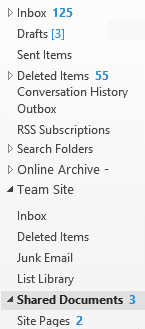
Once your Site Mailbox is set up it will automatically appear in your Outlook 2013 client if you have owner or member access to the site in SharePoint where it was configured.  Your Outlook folder bar should end up looking something like the picture to the right.  Note the "Team Site" item about half way down and the Inbox within it.  The other items from that same SharePoint site are also now listed.

You can do many interesting things with Site Mailboxes from sharing e-mail and files within teams to using them as a migration bridge for the old Exchange Public Folders.  When combined with the other new Exchange mailbox types they give another powerful way to store and share e-mail.  It should be noted that the 5 GB of e-mail storage in each Site Mailbox does not count against any other storage quota, either for SharePoint or Exchange... not personal or pooled quotas.  You have plenty of e-mail storage options in Office 365 (E3 values listed here, see the link at the bottom of the article for more):
  • 25 GB per User Mailbox
  • 5 GB per Shared Mailbox
  • 5 GB per Site Mailbox
  • 250 GB per Resource Mailbox (for room and equipment reservations).
And... only User Mailboxes require a license.  You can apply an Exchange Plan 2 license ($8/mo) to a Shared Mailbox though if you would like to increase its storage to 25 GB.


How to Add a Site Mailbox

The easiest way to add a Site Mailbox to your SharePoint site is from the Get started with your site web part. Click on the Keep email in context tile, and then choose to Add it.

If you don't have the Get started web part on your site you can follow these instructions instead:


Manually Add a Site Mailbox:

1. On the Quick Launch (left nav bar) click the Site Contents item.  You can also get to Site Contents from the gear icon on the right end of the top nav bar.


2. From the Site Contents page click the add an app icon.


3. On the Your Apps page, click Site Mailbox.


What to Do with a Site Mailbox

Use Site Mailboxes to...
  • Replace Public Folders being used for e-mail storage
  • Share e-mails within a team instead of creating a shared mailbox
  • Share e-mails within a team instead of sharing your own mailbox folders
  • cc: the Site Mailbox on e-mails you wish to share with a team instead of cc'ing the team members and gumming up their inboxes
  • cc: the Site Mailbox when sending e-mails with file attachments to share files (I'd rather post them to a SharePoint Document library though...)
  • Archive e-mails centrally so that intellectual property and organizational knowledge are preserved (and shared) despite personnel changes and mailbox deletions
  • Access SharePoint data through the convenient and familiar Outlook desktop client interface
  • Manage the Site Mailbox the way you would a regular mailbox with policies, forwarding, distribution group memberships and more.

What Site Mailboxes Can't Do

There are some limitations to Site Mailboxes as well:
  • They have a 5 GB storage limit
  • You can only have one per SharePoint site - create a SharePoint team site for each group that needs a Site Mailbox
  • You cannot interact with the mailbox contents within the SharePoint interface as objects the way you can with list items and document library objects
  • For full functionality you need Outlook 2013
  • You can only add 10 Site Mailboxes to Outlook at a time
  • There's only two levels of access: all or none.

More Information about Site Mailboxes

Enhanced by Zemanta

Wednesday, June 12, 2013

Upgrading Office 365 SharePoint Online Sites to Wave 15 (2013)


If your Office 365 tenant has just been upgraded you won't see the new SharePoint Online features unless you manually upgrade your existing sites to the new 2013 platform.  New features include:
  • Better mobile experience
  • eDiscovery
  • Improved branding
  • New Business Intelligence and Business Connectivity Services capabilities (limited in SharePoint Online)
  • OneNote
  • PowerShell for SharePoint Online
  • Records Management & Compliance
  • Revamped Office Web Apps
  • Site Mailboxes
  • SkyDrive Pro
  • Social - including Yammer (the options for Yammer should show up by July for all tenants)
  • Totally reworked external file sharing
For a more extensive education about the new features of SharePoint 2013 visit Capabilities and features in SharePoint 2013 on TechNet or specifically for SharePoint Online - What’s new in SharePoint Online–top 10.

* Note: Please keep in mind that you should always test changes in a separate environment where possible before making production system changes like this.  During the process you will be presented with an option to set up a demo site with the new features.  If you have questions about how upgrading the service will affect your content and existing SharePoint environment I recommend you test on the demo site before following these instructions. *

Here are the steps you follow to upgrade your SharePoint sites:

1. Log in to your Office 365 tenant
2. You should see a bell icon in the top navigation bar:

3. Click the bell icon and a drop-down box with additional information will appear:

4. Click on the link to "Start using them" - it will take you to the SharePoint admin console.  Or if you don't have the alert you can just choose the Admin link on the top navigation bar and click the SharePoint option:

5. On the SharePoint Site Collections page find a collection that lists 2010 in the version column:
6. Check the box next to the 2010 site collection you wish to upgrade:

7. Click the Upgrade button and select the option for "Site collection upgrade settings":


8. Click the "Link to upgrade page" and your upgrade page will open in a new window:


9. Click the "Upgrade this Site Collection" button to begin your upgrade.  If you want a demo upgrade to test your applications follow the link provided:


10. Click the "I'm ready" button in the confirmation window.  Note that you cannot go back once you have upgraded.

  
11.  Depending on how busy the Office 365 SharePoint automated upgrade service is you may see a notification that you are "Waiting to Upgrade."  The screen will update periodically and when its your turn to upgrade (generally just a few minutes later) you will be forwarded to the upgrade screen.


12. While your upgrade is in progress you'll see some statistics and when it finishes the screen will update to the completed screen.


13. Within just a few minutes you should see your upgrade complete successfully.  You'll be provided links to discover the new features of SharePoint 2013 or to just go to your newly upgraded site collection.


14. Go back to your SharePoint - Site Collections screen and repeat the process for each 2010 collection.  Keep in mind that you'll need to log in with an account that has admin permissions for each site collection you upgrade.

You're done!  Go explore the new features and enjoy SharePoint 2013!
Enhanced by Zemanta
Related Posts Plugin for WordPress, Blogger...