Pages

Showing posts with label Office 365. Show all posts

Wednesday, February 4, 2015

Office 365 Security Updates - Encryption, DKIM, DLP, and More!

Microsoft recently announced upgrades to OneDrive including greatly expanded storage.  They also released details around how OneDrive (and SharePoint Online) encrypts customer data both in transit and at rest.

The video below explains Microsoft's encryption very clearly.  See the original article for more.


I've been very happy with Microsoft's continued focus on security.  Here's a short list of some of the more recent announcements:

There is also the Office 365 Trust Center - an entire internet portal Microsoft has devoted to answering questions about Office 365's security features.

Tuesday, July 29, 2014

Cloud Compliance and Regulatory Challenges with Office 365!

Are you in highly a regulated industry?  Do you have issues with "the cloud" and compliance and regulatory challenges?  Let's talk about how Office 365 IS and IS NOT just "cloud."  Once we've cleared the air a bit, you should take another look at Office 365 with a fresh set of eyes and reconsider Office 365 for at least some of your workloads.

I recently blogged extensively on this topic on the Oakwood Insights site.  In the future, I'll be posting complimentary articles there and here and will link them together.

What Office 365 IS NOT:

Everyone talks about what Office 365 IS.  I'd like to contrast that with what Office 365 is NOT:

Office 365 IS Office 365 is NOT
A suite of hybrid on-premises and cloud-hosted services and software:
JUST e-mail in the cloud
A highly-available service developed for business A consumer-grade e-mail solution for end-users
Private and transparent A vehicle for generating more advertising revenue
Compliant to regulatory requirements An all-in cloud solution unable to handle on-premises data requirements
Secure - both for physical and logical access Always a valid answer for every security requirement
A licensing vehicle for flexible access to the Microsoft Office suite of applications A replacement for your EA licensing agreement with Microsoft
A great solution for businesses that need the flexibility to go to the cloud on their own terms at their own speed. Just for business - education and government organizations at all levels are using Office 365

Addressing Compliance and Regulatory Requirements

Office 365 addresses a comprehensive list of requirements including:

  • HIPAA
  • Data Processing Agreements (DPA)
  • Federal Information Security Management Act (FISMA)
  • ISO 27001
  • EU model clauses
  • U.S. - E.U. Safe Harbor


And here are some of the security and privacy tools used to address compliance and regulations:

  1. Restricted physical data center access
  2. Encryption at rest and during transmission
  3. No use of customer data for advertising
  4. Regular back ups of data
  5. Enforcing "hard" passwords
  6. Data Loss Prevention (DLP)
  7. eDiscovery
  8. Granular, role-based permissions
  9. Transparent operations - know where your data is and who has access
  10. Visibility in to availability and a 99.9%, financially-backed up time guarantee.

Some of the industries with the heaviest requirements (finance, healthcare, power and utility, government and education to name a few) have just written off the cloud entirely and I think that's a big mistake.  On a quarterly or even monthly basis, Microsoft is improving the service, continually adding capabilities and looking at additional security and management features.  Frankly, investing in the types of features and controls that Office 365 provide in an on-premises environment can be very expensive and labor-intensive and most small and medium sized organizations struggle to comply with complex and intrusive regulations.

So, I hear a lot of: "we can't move anything because we can't move everything."  Organizations assume that if they have one workload or one class of user that requires high-security or is highly regulated that they cannot move any of their workloads or users.  This simply isn't true in most cases.  Microsoft has invested much effort in developing products that offer "Hybrid" on-premises / cloud functionality.  Let's talk about that next...


What Hybrid Does for You

English: Diagram showing overview of cloud com...
Typical Components of Cloud Computing Systems
First, what does "Hybrid" mean?  Hybrid configurations take the best of on-premises and cloud-hosted systems and tie them together.  While hybrid configurations can be more complex they also afford much greater flexibility and functionality.

Here's what that means: you can selectively choose workloads that are more appropriate for the cloud and move just those while leaving the remainder of your IT infrastructure on-premises where you have full control of it.  Take advantage of the scale and pricing efficiency you get in the cloud but do so only for those users and data for which it is appropriate.

The real trick is categorizing your data, users and business processes to understand which platforms are best suited for them.  The same way you now evaluate storage... tier 1/2/3... you need to evaluate platforms.  Consider on-premises traditional, public cloud and private cloud options and make a chart for each use case and where that workload belongs.

Learn More About My Cloudy Challenge!

Visit my article at Oakwood Insights for more:

  • How Hybrid Works: what are DirSync, ADFS and Hybrid?  And how do they change the Office 365 conversation?
  • Risk Management: how Microsoft categorizes data and how you can use their model to evaluate what does and doesn't belong in the cloud.
  • Power and Utilities example: how a power and utility company might selectively choose a workload for Office 365 and mitigate some of the security and data ownership challenges they face.
  • Microsoft is crossing platforms... Windows, iOS, Android... they just want to sell you services now and don't care where you access from or how.
  • My Cloud Challenge!  Reevaluate Office 365 and start a pilot... for something, no matter how small.  Your peers are looking at the cloud... you need to be as well.


Related articles

Wednesday, July 16, 2014

The New Cloud Productivity Competency for Office 365 Partners


Well, it's WPC (Worldwide Partner Conference) time again and that means changes to the Microsoft Partner Network.  Most years we see several new and changing competencies and this year is no different.  With Microsoft's recent focus on cloud and the phenomenal success of Office 365, however, it should be no surprise that the Cloud Partner programs (Cloud Deployment and Cloud Accelerate / Essentials) are being revised retired.

None of this should be a shock... we've heard rumblings since late 2013 that changes were coming.  In November, Julie Bennani (General Manager, Microsoft Partner Network) released the timeline for some of the changes announced at WPC in 2013 (see Partner Program Updates. What you need to know).  Included was the retirement of the Cloud Essentials, Accelerate and Deployment programs.  In January, a Technet article (see Cloud Program Update: Your Questions, Answered) clarified some of the reasons for the changes and how the retirement of the programs would work and how Partners would be affected.

In a post titled "Making Cloud core to the MPN Program", this week at WPC 2014, Gavriella Schuster (General Manager, Worldwide Partner Group) confirmed the program update and announced some significant changes that will simplify partnering with Microsoft for public and private cloud while providing additional resources at the same time.  Unfortunately, some of the differentiation for top Office 365 partners is falling by the wayside as a result... as her article title suggests, cloud is now core to the MPN program and Microsoft will be expecting more and more partners to get on the cloud bandwagon.

Here's a summary of what's new and changed:

Program Benefits Requirements Description
Action Pack5 seats of E3

5 seats Intune
Partner account

Action Pack Purchase for $475
Replaces the Cloud Essentials program.  Phone support, trial invites, delegated admin.
Silver Cloud Productivity Competency25 seats of E3

25 seats Intune
One Office 365 tech

One messaging tech

Customer reference

Deployed Office 365 active use requirement
Roughly replaces Cloud Accelerate.  Office 365 demo tenant, Signature Cloud Support, trial invites, delegated admin, etc.  Switch from assigned seats sold to active use as metric.
Gold Cloud Productivity Competency100 seats E3

100 seats Intune

EMS

Direct PAM
Two Office 365 techs

Two messaging techs

Customer reference

Deployed Office 365 active use requirement

Additional program fee
Roughly replaces Cloud Deployment.  Same as Silver but adds more internal rights, Enterprise Mobility Suite (EMS) and direct-to-partner support by a tele-partner account manager (tPAM).

One of the big challenges for partners working with Microsoft on funding offers (BIF) like the enterprise E3 $40/seat FY2013 offer and more recently the watered-down FastTrack Office 365 offer has been the deployed seat metric.  It looks like the competencies are going to use a similar metric for now until Microsoft can come up with a good way to accurately measure "active use" of the service.  Right now they judge deployment using the number of assigned seats... just due to lack of a better metric.

The Office 365 Marketplace and Pinpoint still have the existing filters (Cloud Deployment, Top Cloud Experts, Cloud Accelerate, etc.) but I would guess those will be replaced by a simpler "Cloud Productivity" filter or such at some point.  When that happens those companies that have fought hard for their premium cloud designations may be a bit unhappy.  Hopefully the additional resources like EMS and Signature Phone Support being provided offset the loss though.

More information and links to additional material can be had at Cloud is our core - Build a profitable cloud business on the Partner Network site.  See a good breakdown of the specific benefits and requirements between the Silver and Gold competencies at Cloud Productivity, also on the Partner Network site.

Friday, July 11, 2014

Office 365 Learning and Education Roundup

Do you ever find there's a lack of sufficient Office 365 technical and learning resources?

Yeah, me neither.

There is so much available it can be a real challenge to identify what is worth your time and what is not.  This isn't meant to be an exhaustive list but I'm going to hit some highlights of more useful resources.  Feel free to add your favorites down in the comments.

I've organized resources by category, beginning with introductory materials and ending with expert resources.

Happy learning!


For Beginners

Resource Description
Usefulness
What is Office 365 for business? Microsoft's Office 365 main product website is comprehensive with links to use cases, features, versions, pricing, and learning materials. It's a great place to start.
*****
Getting to know Office 365 eBook Has very high level use cases for end users. Gives an idea about capabilities without going in to any details about specific functionality.
**
Quick Start to Office 365 for Small to Medium Businesses A guide to introducing new users to Office 365 through Microsoft learning videos, e-mail campaigns and hands-on demonstrations.  Zipped guide e-mail templates, presentation, videos, etc.
***
Office 365 Midsize Business Quick Deployment Guide An initial training resource for Office 365 admins that will be configuring the service. The guide covers simple new account topics like setting up e-mail services, managing licenses and adding users.
***
Microsoft Virtual Academy The MVA is a fantastic resource for IT pros. A number of Office 365 courses are available including introductory guides, video training, hands-on virtual demos and more.
*****

Intermediate and Advanced

Resource Description
Usefulness
Office 365 MCSA Certification Achieve certification in Office 365. Concentrates on provisioning, identity management (DirSync), federation and single sign on (ADFS), and configuring the services. Instructor-led training is available from Microsoft Learning Partners to prepare.
****
MS Online Demo Solutions This site has virtual click-through labs for Office 365 including for migration of users, enabling federation and more.  Unfortunately, the content is for an older version of the service and the 2010-level applications.  Still, it may be useful for those who don't have a demo environment and need more hands-on than the videos and documentation provide. 
**
Office Ignite Important resource! Events, in-depth videos and technical content for training administrators.  Much of the content is presented directly by Microsoft product managers, engineers and support staff.
*****
Office 365 Technical Network on Yammer This is a great place to network with your peers, ask questions, and interact directly with Microsoft.
***
LinkedIn Office 365  The Microsoft Office page on LinkedIn with content shared from members.  Join the LinkedIn group for "Microsoft Office 365" as well to network with your peers.
****
Channel 9 View videos from Microsoft events - including product demonstrations, training videos and more.
***
Office 365 Garage Series These are good videos for deeper technical dives in to particular Office 365 features. They highlight topics like compliance, what's new with SP1 for Exchange 2013, Yammer, OneDrive and more.
*****
Office Blogs News about Office and Office 365... a good place to subscribe a RSS feed to.
***

I know that's a lot to absorb, but hopefully my descriptions and rankings will help you make sense of them somewhat.  This is by no means an exhaustive list... what did I miss?  I'll add the best ones in and update the article periodically.

Thursday, May 1, 2014

Office 365: The End of Exchange?

...non fidarsi è meglio - my scared cat / gatto
My scared cat / gatto (Photo credit: Paolo Margari)
"Be Afraid, Be Very Afraid!"

That's what I tell messaging engineers and consultants that aren't building their cloud skills.  The days of vanilla on-premises e-mail systems are numbered, and if you're not building your skills you're falling behind.

Just in case you've been asleep for the last twenty years here's what has happened in e-mail:
  1. Starting in the early 90's - only a few people had e-mail, mostly through universities.
  2. By the mid-late 90's - dial-up internet providers started providing IMAP / POP3 e-mail services that you would access through client applications like Eudora or Outlook.  At this point, e-mail was mostly used by businesses.
  3. In the late 90's - ISPs, Yahoo and AOL began providing access to e-mail for customers through rudimentary e-mail web portals.  E-mail became popular with more tech savvy home users.
  4. By 2007, Web 2.0 was a reality and Google had released Gmail.  They began wrapping more powerful web functionality around the service.  The accessibility provided by a friendly and easy web interface further popularized e-mail... most people had e-mail accounts by 2007.
  5. In 2009, after seeing Google successfully launch a hosted e-mail product, Microsoft released Business Productivity Online Services (BPOS).  It was essentially Exchange 2007 hosted on some servers Microsoft owned.  The value proposition of BPOS being designed for business was pitched to customers.
  6. In late 2011, after upgrading Exchange to 2010 and re-writing the software to better tailor it for mass hosting, Microsoft upgraded BPOS to Office 365 and began including rudimentary Office apps hosted in the cloud as well.
  7. In January of 2013 Microsoft upgrades Office 365 again and the Microsoft Office suite took a full leap in to the cloud, providing much enhanced functionality:
    1. After aggressively pursuing certifications and jumping the toughest regulatory and compliance hurdles, Office 365 began accelerating adoption both in business and in people's personal lives.
    2. Offering the full Microsoft Office software suite further distinguished Office 365 from competitors.
    3. The only hosted e-mail service with a true hybrid deployment model, Office 365 now defines the hosted e-mail experience for large enterprises.
So, its plain to see that cloud-based e-mail services are only going to expand.  The demand for hybrid deployments that include both on-premises and cloud-based systems is increasing as customers realize that they can move the workloads they are comfortable with putting in to the cloud while leaving others on-premises in traditional hosted systems.  If you're an Exchange e-mail administrator and you're not preparing for hybrid and cloud-based systems you're in trouble.

The cost / benefit equation is an easy sell to IT executives and vendors like Microsoft are making that value proposition to your leadership daily.  You can only use excuses for not moving for so long before the cost savings drive some of your e-mail in to the cloud.  You'd best be ready for it soon or you'll be looking at a new career when you cannot adapt.

Commodore 64
Commodore 64 (Photo credit: shaniber)
Speaking of excuses, lets talk about companies that aren't investigating how cloud can enhance their business.  Want to be like Polaroid or Kodak?  They failed to see the digital camera revolution.  How about Palm Pilot and Commodore?  When was the last time you saw one of either of those?

In my research for this article I came across a great list of excuses to NOT innovate.  I'm going to quote just a few excuses from Mitch Ditkoff's article "The Top 100 Lamest Excuses for Not Innovating".  I suggest you give the full article a read... its hits very close to the mark I believe.  Here are a few of the excuses he found:

5. We won't be able to get it past legal.
6. I've got too much on my plate.
13. There's too much bureaucracy here to get anything done.
14. Our customers aren't asking for it.
15. We're a risk averse culture. Always will be.
34. If it ain't broke, don't fix it.
89. We need to focus on the short term for a while.
91. What we really need are some cost cutting initiatives.
95. Maybe next year.

Do any of those sound familiar?  If your organization is using any of those excuses to not go to the cloud or at least evaluate how portions of cloud could be implemented, you should be looking for a new job.  If your employer doesn't use cloud you aren't developing cloud skills.  If you're not developing those cloud skills how will you find your next job?  Employers are asking for cloud skills on top of everything else.  Just go look at the LinkedIn (14,590 postings with "cloud") or SimplyHired (5,484 "cloud" jobs just near Kansas City) job boards and search for "cloud."  You'll see.

And if you are that company using compliance and regulations to not move to the cloud... you know who you are.  Are you using excuses like being in a highly regulated industry like healthcare, financial services, power & utilities?  Check out "Office 365: A snowball's chance in hell?" for a look at how some top utilities are taking a second look at the cloud.

If you are hiding behind these acronyms you need to take another look at cloud.  At least with Office 365 (see the Office 365 Trust Center) I know you have good, compliant, hybrid solutions:
  • ISO
  • HIPAA
  • ISO
  • FISMA
  • FERC / NERC,
  • EU privacy
In a future article maybe I'll talk about how hybrid solutions can meet the needs of highly regulated industries.  Yes, it IS possible to comply with regulations and just move certain workloads to the cloud.

Are you ready for the cloud?  Time's up.  It's here.


Enhanced by Zemanta

Wednesday, August 28, 2013

SkyDrive Pro and SharePoint Shared With Me Updates

Here's just a quick update for you all...

Microsoft announced yesterday that SkyDrive Pro users would now receive 25 GB instead of 7 GB of storage by default.  That number can be increased up to a total of 100 GB.  The additional storage comes out of your SharePoint Online storage pool.

The total storage available to each user is now 25 GB of SkyDrive Pro storage + 25 GB of  email storage + 5 GB for each site mailbox you create + your total available tenant storage, which for every Office 365 business customer starts at 10 GB + (500 MB x # of users).

You can purchase additional storage for SharePoint Online for $.20 per GB up to the tenant maximum of 25 TB.  Quota maximum is 100 GB per Site Collection.

The second announcement was an improvement in visibility for all documents that have been shared with you.  See the full details of the announcement at SkyDrive Pro increases storage and ease of sharing.
Enhanced by Zemanta

Tuesday, July 16, 2013

Is it Exchange or SharePoint? What are Site Mailboxes for?


The updated 2013 platform version of Office 365 offers many new features, but SharePoint is perhaps the biggest update.  My last article (Upgrading Office 365 SharePoint Online Sites to Wave 15) had a good list if you're interested.

One of the more interesting and underutilized new features is the Site Mailbox.  You won't see Site Mailboxes by default on new SharePoint sites you set up though.  You'll need to add them yourself.  Let's start with the basics...

What is a Site Mailbox?

The architecture for Exchange 2013 changed somewhat and now includes the ability to support many more types of mailboxes: user mailboxes, shared mailboxes, room calendars (mailboxes), and resource mailboxes (for equipment reservations).  Each has different functions and access methods and most have different storage limits.  The Site Mailbox is an extension of the Shared Mailbox.

When a Site Mailbox is added to a SharePoint site (more on that later) the inbox portion of a Shared Mailbox (more information on Shared Mailboxes) is added to a SharePoint site.  It appears as an Outlook Web App window as seen above.

You can also access the Site Mailbox from within Outlook.  From Outlook you - and anyone who has access to the site mailbox in SharePoint - can drag and drop messages to and from and within the Shared Mailbox just as if it was your own.

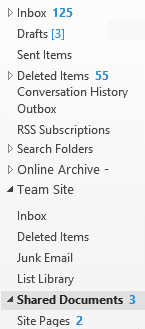
Once your Site Mailbox is set up it will automatically appear in your Outlook 2013 client if you have owner or member access to the site in SharePoint where it was configured.  Your Outlook folder bar should end up looking something like the picture to the right.  Note the "Team Site" item about half way down and the Inbox within it.  The other items from that same SharePoint site are also now listed.

You can do many interesting things with Site Mailboxes from sharing e-mail and files within teams to using them as a migration bridge for the old Exchange Public Folders.  When combined with the other new Exchange mailbox types they give another powerful way to store and share e-mail.  It should be noted that the 5 GB of e-mail storage in each Site Mailbox does not count against any other storage quota, either for SharePoint or Exchange... not personal or pooled quotas.  You have plenty of e-mail storage options in Office 365 (E3 values listed here, see the link at the bottom of the article for more):
  • 25 GB per User Mailbox
  • 5 GB per Shared Mailbox
  • 5 GB per Site Mailbox
  • 250 GB per Resource Mailbox (for room and equipment reservations).
And... only User Mailboxes require a license.  You can apply an Exchange Plan 2 license ($8/mo) to a Shared Mailbox though if you would like to increase its storage to 25 GB.


How to Add a Site Mailbox

The easiest way to add a Site Mailbox to your SharePoint site is from the Get started with your site web part. Click on the Keep email in context tile, and then choose to Add it.

If you don't have the Get started web part on your site you can follow these instructions instead:


Manually Add a Site Mailbox:

1. On the Quick Launch (left nav bar) click the Site Contents item.  You can also get to Site Contents from the gear icon on the right end of the top nav bar.


2. From the Site Contents page click the add an app icon.


3. On the Your Apps page, click Site Mailbox.


What to Do with a Site Mailbox

Use Site Mailboxes to...
  • Replace Public Folders being used for e-mail storage
  • Share e-mails within a team instead of creating a shared mailbox
  • Share e-mails within a team instead of sharing your own mailbox folders
  • cc: the Site Mailbox on e-mails you wish to share with a team instead of cc'ing the team members and gumming up their inboxes
  • cc: the Site Mailbox when sending e-mails with file attachments to share files (I'd rather post them to a SharePoint Document library though...)
  • Archive e-mails centrally so that intellectual property and organizational knowledge are preserved (and shared) despite personnel changes and mailbox deletions
  • Access SharePoint data through the convenient and familiar Outlook desktop client interface
  • Manage the Site Mailbox the way you would a regular mailbox with policies, forwarding, distribution group memberships and more.

What Site Mailboxes Can't Do

There are some limitations to Site Mailboxes as well:
  • They have a 5 GB storage limit
  • You can only have one per SharePoint site - create a SharePoint team site for each group that needs a Site Mailbox
  • You cannot interact with the mailbox contents within the SharePoint interface as objects the way you can with list items and document library objects
  • For full functionality you need Outlook 2013
  • You can only add 10 Site Mailboxes to Outlook at a time
  • There's only two levels of access: all or none.

More Information about Site Mailboxes

Enhanced by Zemanta
Related Posts Plugin for WordPress, Blogger...